One Memory Across Claude Code, Cursor, Codex and VS Code
Connect every coding agent you use to the same MemorySync memory, with the exact MCP config each client expects, so a decision saved in one tool is found in the next.
Published on 3 min read
On this page
Most developers now move between two or three coding agents in a week: Claude Code in the terminal, Cursor in the editor, Codex for a background task. Each keeps its own notes, so a convention you explained to one is news to the others.
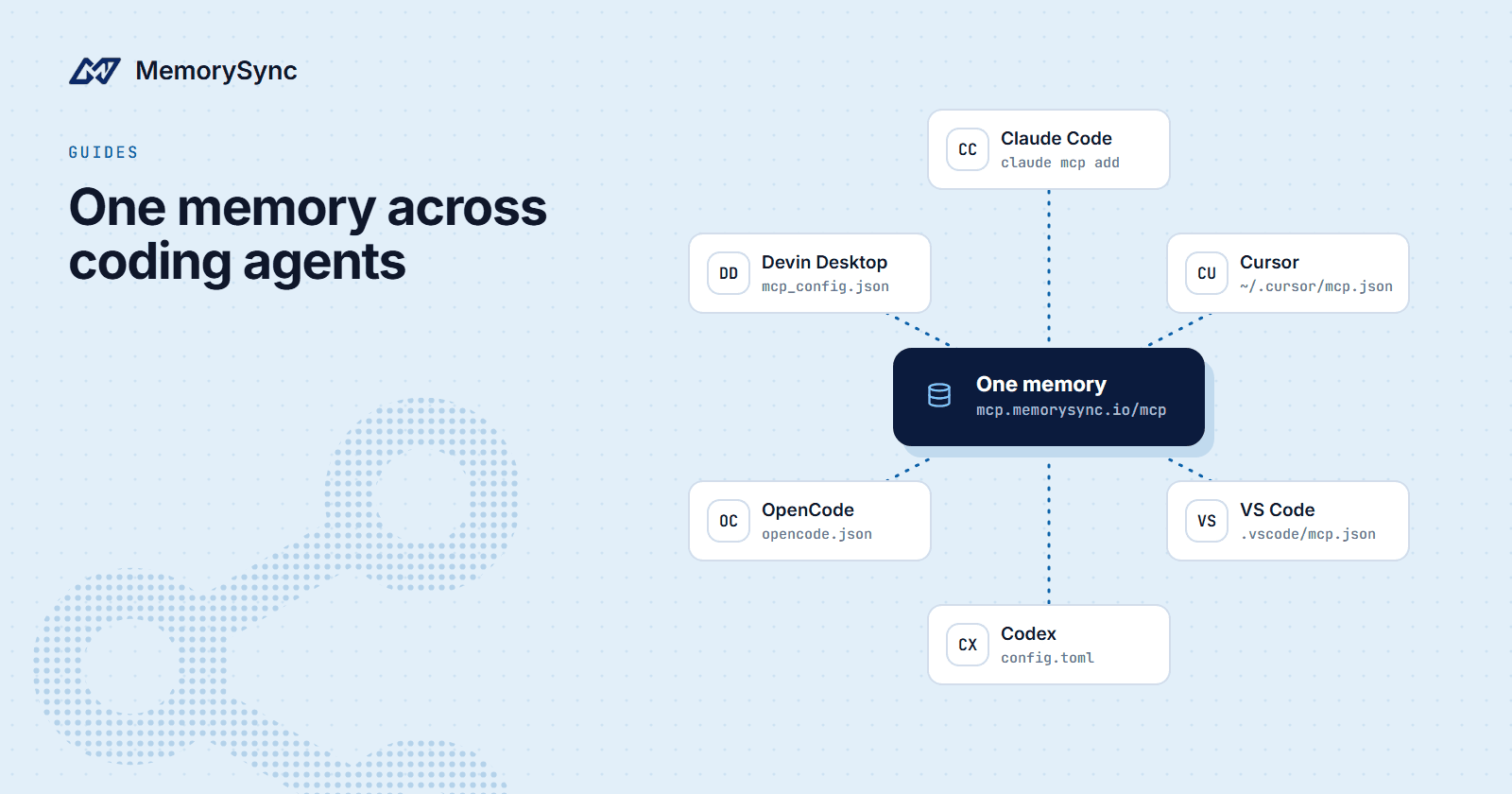
MemorySync's memory server is one store reachable over MCP from all of them. Connect each client to the same server and sign in with the same account, and a decision saved in Cursor on Monday is what Codex finds on Wednesday. This guide gives the exact configuration for each client and the details that differ between them.
The fastest path
The installer detects which clients you have and writes each one's config in the shape it expects:
# Show which clients were detectednpx -y memorysync-mcp-install --list# Preview, then write config for every detected clientnpx -y memorysync-mcp-install --dry-runnpx -y memorysync-mcp-install# Or just onenpx -y memorysync-mcp-install --client codex
It adds both servers by default: memory at https://mcp.memorysync.io/mcp and docs at https://docs.memorysync.io/mcp. --server memory adds only the first, and --remove undoes the change. The rest of this guide is what it writes, for when you configure a client by hand.
Why the shapes differ
Every client stores MCP servers in a different file with a slightly different schema. Cursor uses url; VS Code nests servers under servers and wants "type": "http"; Codex reads TOML; OpenCode requires "type": "remote". A config in the wrong shape usually parses without an error and then never connects, which is the hardest failure to notice. Copy the block for your client exactly.
Client by client
Claude Code
claude mcp add --transport http memorysync https://mcp.memorysync.io/mcp
Claude Code speaks Streamable HTTP directly and runs the browser sign-in itself on the first tool call. For automatic capture and recall through hooks, see Give Claude Code a Memory That Survives Sessions.
Cursor
In ~/.cursor/mcp.json:
{"mcpServers": {"memorysync": {"url": "https://mcp.memorysync.io/mcp"}}}
VS Code
In .vscode/mcp.json for one project, or mcp.json in your user profile to apply everywhere. Note servers, not mcpServers:
{"servers": {"memorysync": {"type": "http","url": "https://mcp.memorysync.io/mcp"}}}
MCP tools in VS Code are available in agent mode.
Codex
In ~/.codex/config.toml, then sign in:
[mcp_servers.memorysync]url = "https://mcp.memorysync.io/mcp"
codex mcp login memorysync
Codex defaults to OAuth for HTTP servers, so the URL alone is enough.
OpenCode
In ~/.config/opencode/opencode.json, then opencode mcp auth memorysync:
{"$schema": "https://opencode.ai/config.json","mcp": {"memorysync": {"type": "remote","url": "https://mcp.memorysync.io/mcp","enabled": true}}}
Devin Desktop (formerly Windsurf)
Run devin mcp add memorysync https://mcp.memorysync.io/mcp, then devin mcp login memorysync. The config lives in ~/.config/devin/mcp_config.json and uses url. The legacy Cascade agent still reads ~/.codeium/windsurf/mcp_config.json and names the field serverUrl; editing the wrong file shows no error and changes nothing.
One identity, every tool
Shared memory needs every client to act for the same person. With OAuth that is simple: sign in with the same MemorySync account in each client. The memory server acts for that account, whichever tool is calling.
For headless clients, such as an agent in CI, use an API key instead of a browser sign-in. The server accepts Authorization: Bearer or X-API-Key. Make sure the key and end user resolve to the same scope your interactive tools use, or the CI agent will be writing to a separate memory.
You can check any connection with the whoami tool, which reports how it is authenticated and whether it can write and delete.
Know which tool wrote what
When several agents write to one memory, provenance helps. add_memory takes a source, for example cursor or codex. Later:
list_entitiesgroups memories by source, extracted category or type, with counts and last activity.delete_entityremoves every memory from one source, after a dry run that reports how many it would delete.
That makes an experiment cheap to undo. If an agent spent a week saving noise, you can remove exactly its memories and keep everyone else's.
Next step
Run the installer with --dry-run to see what it would change on your machine. The install guide has the full list of client ids, and the Codex and VS Code guides cover their plugin options.