Connect GitHub, Google Drive, Notion and OneDrive
Bring the repositories, documents and pages your team already keeps into MemorySync. Google Drive now uses the Drive Picker, so it reads only the files you choose.
Published on 5 min read
On this page
Acme's support assistant remembers each customer, but the answers it needs often live somewhere else: the runbook in Notion, the pricing sheet in Google Drive, the known-issue thread on GitHub. Pasting those into prompts by hand works until the documents change.
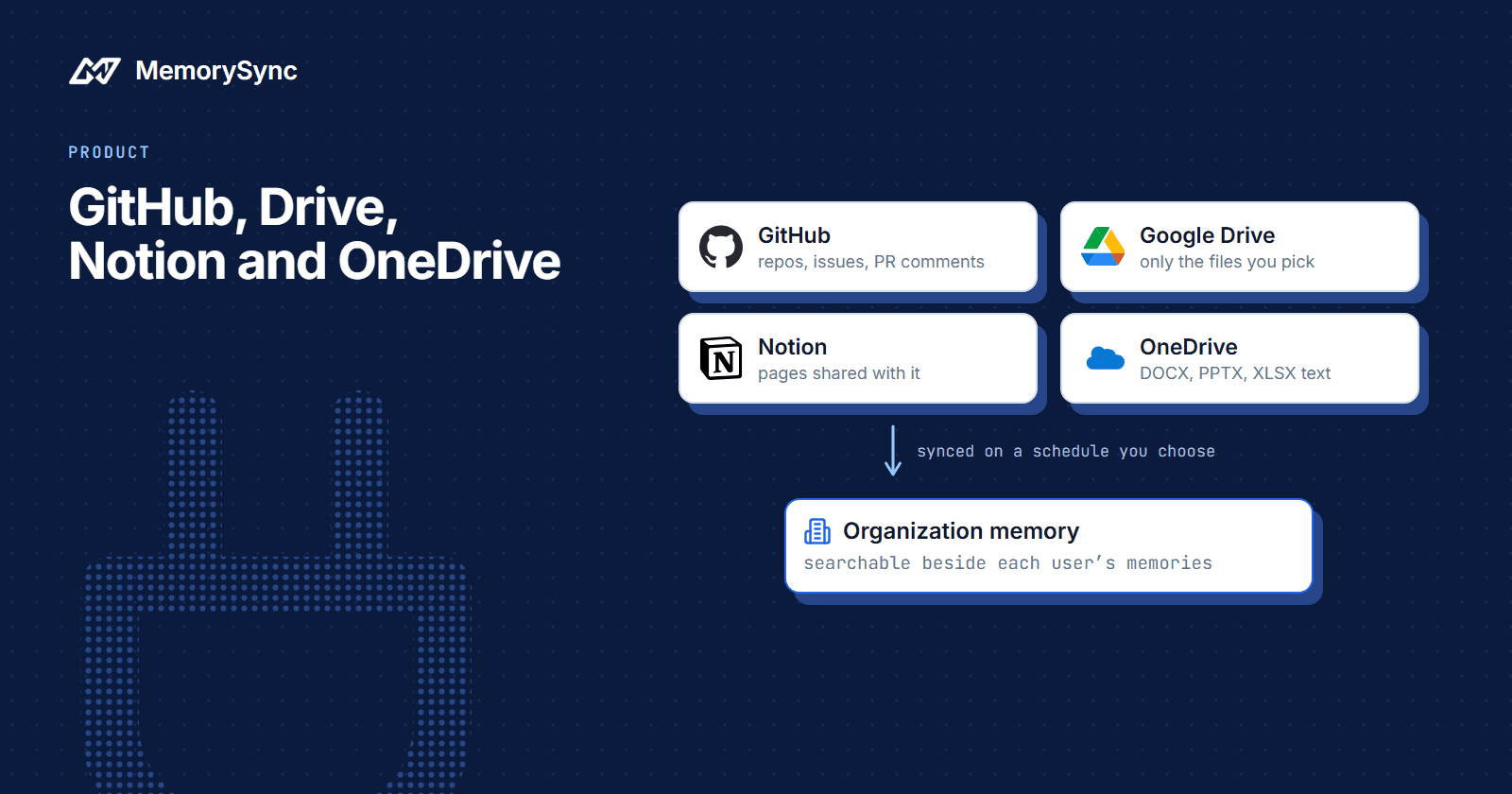
Connectors handle that. A connector reads the content your organization permits from a source tool, keeps it in sync on a schedule you choose, and stores it as organization memories. Your agent searches them with the same query() call it already uses for a customer's own memories.
The GitHub, Google Drive, Notion and OneDrive connectors shipped with the MemorySync launch on June 12. Today Google Drive gets the Drive Picker, which changes what a Drive connection can read. This post covers what each of the four reads and where each one stops.
Google Drive reads only what you pick
Connecting Google Drive now opens the Google Drive Picker. You choose files in Google's own picker, and the connection uses the drive.file scope, which lets MemorySync open the files you picked and nothing else in the account.
That matters for accounts with years of material in them. A support assistant needs the pricing sheet and the refund policy, and with the Picker those are the files the connection can read. Everything else in the account stays out of reach, including files you would never have thought to exclude.
MemorySync reads the text of Google Docs, Sheets and Slides. Drive is polled on the schedule you set, so an edit shows up after the next sync. What can be read also depends on the file type, the file's permissions, Google's API quotas and whether the file is still there.
The Google Drive connector page has the setup steps.
GitHub repositories and issues
The GitHub connector signs in with OAuth and requests the repo and read:org scopes. GitHub requires repo for access to private repositories, and read:org lets the connection see your organization memberships.
It reads repositories, issues and pull-request comments. After the first sync, incremental sync jobs pick up what changed, and signed GitHub webhooks notify MemorySync of new activity.
For a support assistant, issues are often the most useful part, because the error a customer reports may already be diagnosed in one. How much the connector can read depends on the permissions granted at sign-in, the size of each repository and GitHub's rate limits. See the GitHub connector page for details.
Notion pages and databases
The Notion connector also uses OAuth. Notion exposes only the pages and databases someone has shared with the integration, so you control coverage inside Notion itself: share the runbooks and the help-center drafts, and leave the rest unshared.
From each shared page, MemorySync discovers child pages recursively, and later syncs are incremental. Block types the connector does not support may be left out. The Notion connector page walks through sharing pages with the integration.
Microsoft OneDrive files
The OneDrive connector uses Microsoft Graph with the Files.Read.All and offline_access scopes. offline_access lets the connection refresh its token and keep syncing without you signing in again.
It syncs the connected user's own drive and reads the text of DOCX, PPTX and XLSX files. Changes are tracked per drive, so each sync after the first reads only what changed.
Two limits to plan around: each file can be at most 10 MB, and only the connected account's own drive is synced. Reading Office files also has format-specific limits, which the OneDrive connector page lists.
Choosing a sync schedule
Each connection has its own schedule:
realtime: a sync every 5 minutes. Despite the name, it runs on a timer like the other settings.hourlyordaily: a sync once an hour or once a day.manual: nothing runs until you start a sync.
Pick the slowest schedule your users can live with. A pricing sheet that changes once a quarter does not need a sync every 5 minutes, and fewer syncs mean fewer calls against each source's rate limits.
manual also suits a source you are still evaluating. Run one sync, check what your agent retrieves from it, and put it on a schedule only once the results look right.
Connecting, updating and disconnecting a source require the admin or owner role in your MemorySync organization. Connectors are available on every plan, including the free tier.
Who can read connector memories
Connector memories belong to the organization, not to one end user. They are readable across the organization, and inside a project a search returns the project's memories plus the organization's connector memories.
Your agent does not need a separate call for documents. A normal query, made for a normal end user, can return both kinds:
from memorysync import MemorySyncClientms = MemorySyncClient(api_key="...",base_url="https://api.memorysync.io",end_user_id="customer-7",)# customer-7's own memories and matching connector memories, ranked togetherresult = ms.query("how do I reset two-factor authentication", k=5)for m in result.memories:print(m.id, m.text)
When Acme's assistant searches as end user customer-7, one call can return that customer's own memories and the matching runbook from Notion. Both kinds share the k results a query returns, so a large document set can push a customer's own memories further down the list. Check a few real queries after you connect a big source.
Two rules follow from this design:
- Connect only what everyone in the organization may read. These four connectors do not narrow access per person, so a document you connect is visible to every search in the organization.
- Keep customer-specific facts out of shared documents. Store them as that customer's memories instead, where only searches for that end user reach them.
If you are still choosing end-user ids for your customers, Choosing End-User IDs You Will Not Regret covers what to pick.
Connect your first source
Start with the integrations overview, which lists what each connector needs before you begin.